How to Use MostMailer: The Complete Step-by-Step Cold Email Workflow (2026 Guide)
Learn the full MostMailer workflow — from signup and email account setup to inbox warmup, AI email templates, launching cold email campaigns, and managing replies. A complete beginner-to-pro tutorial.
By Mostmailer Team · 2026-07-08
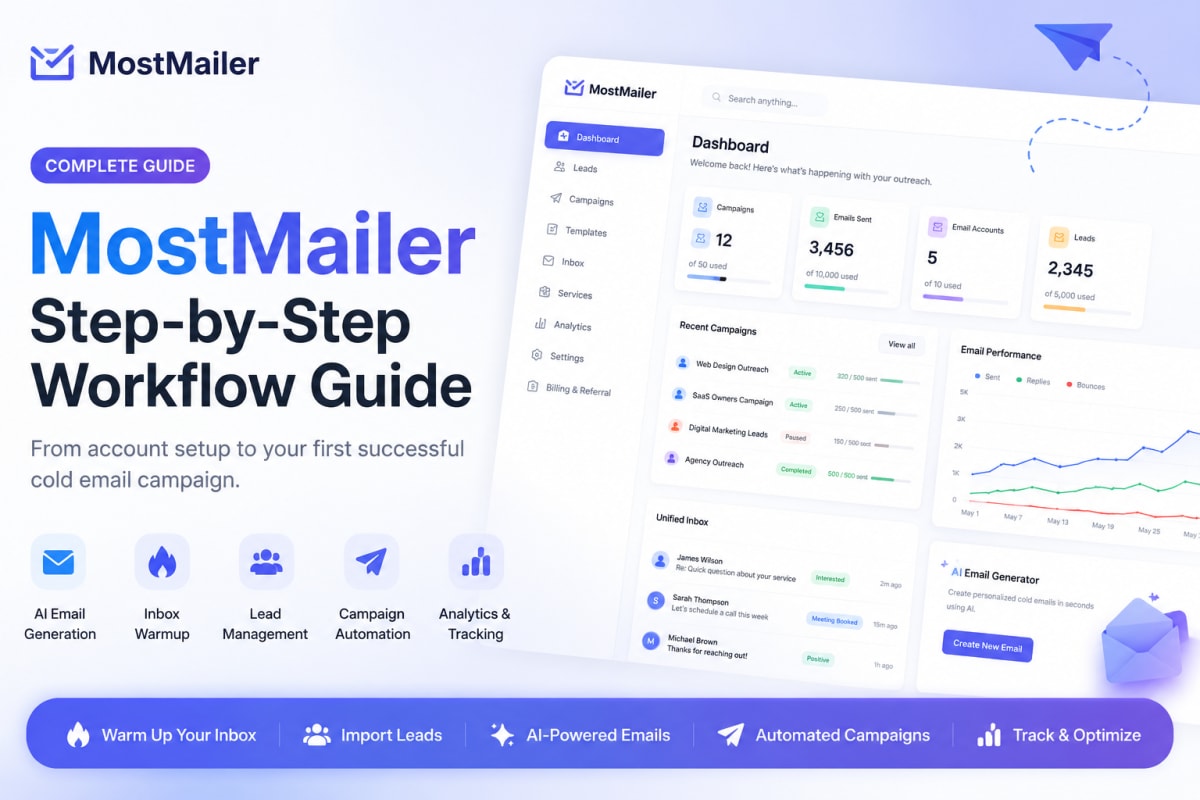
Cold email is still one of the highest-ROI channels for founders, agencies, and sales teams — but only when it's done right. Sending bulk emails from a fresh inbox with generic copy is the fastest way to land in spam and burn your domain reputation.
That's exactly the problem MostMailer solves. It's an AI-powered cold email and outreach automation platform that manages your entire outbound workflow in one place: connecting sender accounts, warming up your inbox, importing leads, generating emails with AI, scheduling campaigns like a human sender, and tracking every reply in a unified inbox.
In this guide, we'll walk through the complete MostMailer workflow from zero to your first successful campaign — every screen, every step, and the best practices behind each one.
Table of Contents
- What Is MostMailer?
- Step 1: Create Your Account and Verify Your Email
- Step 2: Log In and Explore the Dashboard
- Step 3: Create a Service Profile (Teach the AI Your Business)
- Step 4: Connect Your Sending Email Accounts
- Step 5: Warm Up Your Inbox Before Sending Cold Emails
- Step 6: Import and Organize Your Leads
- Step 7: Create Email Templates with the AI Generator
- Step 8: Launch Your First Cold Email Campaign
- Step 9: Monitor, Pause, and Manage Running Campaigns
- Step 10: Manage Replies in the Unified Inbox
- Step 11: Track Performance with Analytics
- Teams, Billing, and Referrals
- Cold Email Best Practices Inside MostMailer
- Frequently Asked Questions
What Is MostMailer?
MostMailer is an AI cold email and outbound automation platform built for founders, agencies, freelancers, and growth teams. Instead of juggling five different tools — a warmup service, an email generator, a lead manager, a sending tool, and a reply tracker — MostMailer combines everything into a single workspace:
- AI email generation trained on your business's service profile, audience, and tone
- Built-in inbox warmup with a day-by-day schedule and progress tracking
- Lead management with CSV import, lead groups, and status tracking
- Campaign automation with human-like sending patterns, business-hours windows, and daily/hourly limits
- Multi-account sender rotation to protect deliverability
- A unified inbox with reply classification so you never miss an interested prospect
- Analytics covering sent volume, reply rate, and bounce rate across every campaign
Now let's go through the workflow step by step.
Step 1: Create Your Account and Verify Your Email
Getting started takes about two minutes:
- Go to the MostMailer homepage and click Register (or open
/registerdirectly). - Fill in your name, email address, and password.
- If a friend or colleague gave you a referral code, enter it during signup — you'll receive bonus credits after verification. If you clicked a referral link, the code is applied automatically.
- Submit the form. MostMailer instantly sends a 6-digit OTP verification code to your email.
- Open the Verify OTP screen, enter the 6-digit code, and your account is activated.
Email verification is mandatory — it keeps the platform clean and protects sending reputation for every user.
Forgot your password later? Use the Forgot Password link on the login page. MostMailer emails you a secure reset link where you can set a new password.
Step 2: Log In and Explore the Dashboard
Once verified, log in at /login with your email and password. You'll land on the Dashboard, your command center. From the sidebar you can reach every part of the platform:
- Dashboard — a high-level overview of your account activity and usage
- Leads — your prospect database
- Campaigns — create, run, and monitor outreach campaigns
- Templates — your email copy library and AI generator
- Inbox — unified reply management
- Services — your business/service profiles that power the AI
- Analytics — performance reporting
- Settings — email accounts, team, profile, and preferences
- Billing & Referral — plan management and rewards
The dashboard also shows your plan allocation tiles — how many campaigns, monthly emails, email accounts, and leads you've used versus your plan limit — so you always know where you stand.
Step 3: Create a Service Profile (Teach the AI Your Business)
Before generating any emails, head to Services and create your first service profile. This is one of MostMailer's smartest features — instead of prompting an AI from scratch every time, you describe your business once and the AI reuses that context for every email it writes.
A service profile includes:
- Service name — e.g., "Web Design Agency" or "SaaS Onboarding Consulting"
- Description — what your service does and what outcome it creates for clients
- Target audience — who you're reaching out to (e.g., "e-commerce store owners doing $50k+/month")
- Email tone — professional, friendly, direct, casual — whatever matches your brand voice
You can create multiple service profiles if you sell different offers or run campaigns for multiple clients (perfect for agencies). Every AI-generated email, subject line, and idea is grounded in the selected service profile — which is why MostMailer's AI copy feels specific rather than generic.
Step 4: Connect Your Sending Email Accounts
Now connect the mailbox (or mailboxes) you'll send from. Go to Settings → Email Accounts.
MostMailer connects over SMTP and IMAP, with built-in presets for the most popular providers, so the host and port fields are filled automatically:
| Provider | SMTP Host | Notes |
|---|---|---|
| Gmail | smtp.gmail.com (587, TLS) | Use a Google App Password — your normal Gmail password usually fails |
| Google Workspace | smtp.gmail.com (587, TLS) | For custom domains on Google; also requires an App Password |
| Outlook / Office 365 | smtp.office365.com (587, TLS) | Use a Microsoft App Password if security defaults require it |
| Yahoo Mail | smtp.mail.yahoo.com (587, TLS) | Requires a Yahoo App Password |
| Zoho Mail | smtp.zoho.com (587, TLS) | Use your Zoho mailbox App Password |
| Custom / Other | Your own values | Full manual SMTP + IMAP configuration supported |
Why does IMAP matter? Because MostMailer doesn't just send — it reads replies back into your unified inbox and detects bounces, which is essential for reply tracking and deliverability protection.
Pro tips for this step:
- Always use an app password, not your regular account password. Enable 2FA on your email provider first, then generate an app-specific password.
- Verify the account after connecting — campaigns require at least one verified sender.
- On higher plans, connect multiple email accounts and let MostMailer rotate between them, multiplying your safe daily volume.
Step 5: Warm Up Your Inbox Before Sending Cold Emails
This is the step most beginners skip — and the reason most cold email efforts die in the spam folder. A new or dormant inbox that suddenly sends 200 emails a day looks exactly like a spammer to Gmail and Outlook.
MostMailer builds warmup directly into the platform:
- Each connected account gets a day-by-day warmup schedule (e.g., Day 1 of 14) with a daily warmup sending limit that gradually increases.
- A progress ring and daily chart show sent, opened, and replied warmup emails so you can watch your sender reputation build in real time.
- Cold emailing stays locked until warmup completes. MostMailer shows exactly how many days remain until cold campaigns unlock — a guardrail that protects your domain from permanent damage.
- Even after unlocking, new senders are capped at a safe daily cold email limit (around 30/day) at first, which then scales as reputation grows.
When you create a campaign while warmup is active, MostMailer even asks whether it's a Warmup Campaign (counted toward your warmup progress) or a Normal Campaign — so your warmup tracking stays accurate.
How long should you warm up? Typically 2–4 weeks for a brand-new domain. It feels slow, but it's the single highest-leverage thing you can do for deliverability.
Step 6: Import and Organize Your Leads
Head to the Leads page to build your prospect database. You have two options:
Option A — Add leads manually. Ideal for small, highly targeted lists where each prospect is researched individually.
Option B — Import a CSV (recommended for scale). Click Import CSV and upload a file with these columns:
name,email,company,notes,status
John Doe,john@example.com,Acme Inc,Sample note,New
MostMailer even provides a downloadable CSV template so your file format is always correct.
Once imported, organize your leads with:
- Lead Groups — segment prospects by industry, region, campaign, or client. Groups can be selected directly when building a campaign.
- Lead statuses — track every lead through the pipeline: New, Contacted, Interested, Not Interested, and more.
- Search and filters — instantly find any lead by name, email, or company.
Note that your plan sets a monthly lead limit, visible on your allocation tiles, so keep your lists clean — quality beats quantity in cold outreach every time.
Step 7: Create Email Templates with the AI Generator
Now for the fun part. Open Templates and click the AI Generator tab.
MostMailer's AI works in three visible phases — it analyzes your service profile, audience, and outreach angle; drafts the copy, subject angle, and personalization; then polishes wording, clarity, and deliverability. You get three generation modes:
- Generate Cold Email — select one of your service profiles and click generate. The AI writes a complete cold email tailored to your offer and audience.
- Generate from Idea — describe your angle in your own words ("mention their recent product launch and offer a free teardown") and the AI turns your idea into a polished email.
- Generate Subject Lines — instantly produce 5 subject line variations for A/B-style testing, since the subject line decides whether your email gets opened at all.
You can also write templates manually, and every template supports:
- Personalization variables (name, company, etc.) filled automatically per lead
- Follow-up sequences — attach follow-up emails to a template so non-responders automatically receive gentle reminders. Each lead's follow-up progress (e.g., step 1 of 3) is tracked per campaign.
- Device preview — see exactly how your email renders on desktop and mobile before sending
- AI badges — templates generated by AI are labeled, so your library stays organized
Copy tip: keep cold emails under 120 words, one clear CTA, no heavy images or links on the first touch. Short, personal, and specific wins.
Step 8: Launch Your First Cold Email Campaign
Everything's ready — sender verified, warmup progressing, leads imported, templates written. Time to launch. Go to Campaigns and click New Campaign.
First, name your campaign (e.g., "SaaS Founder Outreach – July"). MostMailer creates a dedicated campaign page, then walks you through a 4-step setup wizard:
Wizard Step 1 — Campaign Details
Select the email template(s) for this campaign. Selecting multiple templates enables template rotation, which varies your content across sends — a proven deliverability booster. Templates with follow-ups show their sequence count right in the picker.
Wizard Step 2 — Select Recipients
Choose individual leads or entire lead groups. The wizard shows how many recipients the campaign will target and respects your plan's quota.
Wizard Step 3 — Schedule Settings
This is where MostMailer's human-like sending engine shines:
- Schedule type — start immediately or schedule for a future date/time
- Timezone control — set the campaign timezone, or enable "respect lead timezone" so each prospect gets your email during their business hours
- Business window — restrict sending to working hours (default 09:00–17:00) and working days (Mon–Fri by default)
- Daily and hourly limits — cap total volume per day and per hour per campaign
- Random delays — MostMailer inserts randomized gaps between every email, so your sending pattern looks like a human, not a machine gun
Wizard Step 4 — Review
A final summary of templates, recipients, schedule, and sender accounts. MostMailer also runs a campaign readiness check — including whether a verified sender is attached — before you confirm.
Click Start, and your campaign goes live. Emails are queued, scheduled, and sent automatically within your rules — even while you're offline. Background workers monitor active and scheduled campaigns continuously, so nothing stalls.
Step 9: Monitor, Pause, and Manage Running Campaigns
The Campaigns page gives you a live overview: active campaigns, total leads, emails sent, replies, and overall reply rate, with filter chips for Draft, Scheduled, Active, Paused, Completed, and Cancelled. Data auto-refreshes every few seconds while campaigns run.
Click any campaign to open its detail page, which includes:
- A progress bar — emails sent vs. total leads, percentage complete
- Metric cards — total leads, sent emails, replies (with reply rate), and bounces (with bounce rate)
- Schedule & automation health — your business window, sending pace, delays, and pending queue at a glance
- System used — which templates and sender accounts the campaign is using, and how many emails each sender has handled
- Campaign records tabs:
- Sent — a full log of every email: lead, subject, sender account, status, and timestamp
- Leads — every recipient with their current status and follow-up step (e.g., 2/3)
- Queue — upcoming scheduled emails with exact send times
Campaign controls adapt to status: Start a draft, Pause/Stop an active campaign, Resume a paused one, or Pause Schedule on a scheduled campaign. You can edit a campaign's leads, templates, schedule, and accounts at any time from the same page.
Step 10: Manage Replies in the Unified Inbox
Replies are where cold email turns into revenue — and where most tools drop the ball. MostMailer's Inbox pulls responses from all your connected email accounts into one unified view (via IMAP), so you never have to log into five mailboxes.
Key features:
- Reply classification filters — sort incoming replies by category so you can jump straight to the prospects who matter
- Reply directly from MostMailer — respond in-thread without leaving the platform
- Lead status syncing — mark leads Interested or Not Interested so your database stays accurate for future campaigns
Speed matters here: replying to an interested prospect within an hour dramatically increases your booking rate. Check your Inbox daily while campaigns run.
Step 11: Track Performance with Analytics
The Analytics page aggregates performance across your whole workspace: sending volume, reply rates, bounce rates, and campaign comparisons over time. Combined with per-campaign metrics, you can answer questions like:
- Which template gets the highest reply rate?
- Which sender account has the healthiest deliverability?
- Is my reply rate improving month over month?
Healthy benchmarks to aim for: reply rate above 3–5% and bounce rate under 2%. If bounces climb, clean your lead list; if replies are low, revisit your targeting and copy — the data tells you which.
Teams, Billing, and Referrals (Availible Soon)
Teams. On team-enabled plans, invite members by email. Invitees receive a secure link, accept the invitation, and get their own resource allocations (campaigns, emails, accounts, leads) carved out of the owner's plan. Perfect for agencies running multiple SDRs.
Billing. MostMailer offers a Free plan to get started, with paid tiers (Pro and above) that unlock higher monthly email volume, more campaigns, more email accounts, more leads, AI features, advanced analytics, and team management. Upgrades are handled through secure Stripe checkout — promotion codes are supported on the checkout page. Compare everything on the Pricing page.
Referrals. Share your referral code or link from the Referral page. When someone signs up and verifies with your code, you both benefit — new users get bonus credits at signup.
Cold Email Best Practices Inside MostMailer
To wrap up the workflow, here's the checklist we recommend for every campaign:
- Never skip warmup. Let the warmup gate finish before cold sending — it exists to protect you.
- Start low, scale slow. Stay near the initial ~30/day limit per account, then increase gradually.
- Use business windows and lead timezones. An email at 10 AM local time outperforms one at 3 AM every time.
- Rotate templates and sender accounts. Variation is deliverability insurance.
- Always attach follow-ups. 50%+ of cold email replies come from follow-ups, not the first touch.
- Clean your lists. High bounce rates poison sender reputation — remove invalid addresses before importing.
- Personalize with variables and AI. Generic blasts get ignored; specific emails get replies.
- Reply fast. Watch the unified inbox daily and respond to interested leads within hours.
- Respect compliance. Follow anti-spam laws in your region (CAN-SPAM, GDPR, PECR): identify yourself honestly and honor opt-outs.
Frequently Asked Questions
Is MostMailer free to use? Yes — there's a Free plan you can start with immediately. Paid plans unlock higher sending volume, more email accounts, AI features, advanced analytics, and team management.
Do I need a Gmail App Password to connect my account? Yes. Gmail (and most providers) block third-party logins with your normal password. Enable 2-factor authentication on your Google account, generate an App Password, and use that when connecting in MostMailer.
How long does inbox warmup take? MostMailer runs a day-by-day warmup schedule, typically a few weeks depending on your account's starting reputation. Cold campaigns unlock automatically when warmup completes, and your dashboard shows exactly how many days remain.
Can I send emails from multiple accounts in one campaign? Yes. Connect multiple verified accounts and enable sender rotation — MostMailer distributes sending across them, increasing safe volume and protecting each account's reputation.
Does MostMailer send follow-ups automatically? Yes. Attach follow-up emails to your templates, and MostMailer automatically sends them to leads who haven't replied, tracking each lead's follow-up step within the campaign.
What happens if I pause a campaign? Sending stops immediately, and the pending queue is preserved. Hit Resume anytime to continue exactly where you left off.
Can my team use one MostMailer account? On plans with team management, yes — invite members via email, and each gets their own allocation of campaigns, emails, accounts, and leads from your plan.
Final Thoughts
Cold email success isn't about sending more — it's about sending smarter: warmed-up inboxes, targeted lists, AI-personalized copy, human-like schedules, and fast reply handling. MostMailer packages that entire workflow into one platform, with guardrails that keep beginners safe and power features that let agencies scale.
Ready to launch your first campaign? Create your free MostMailer account, verify your email, and follow this guide step by step — your first replies are closer than you think.
Related reading: cold email deliverability, inbox warmup strategy, AI outreach personalization, and lead generation tips — all on the MostMailer Blog.